Install Arch Linux
October 25, 2025
Install Arch Linux for greater ownership and learning.
Migrating from Ubuntu
I already had Ubuntu on my PC, so I backed up my files and installed Arch Linux onto a flash drive.
Booting into the live environment, my first step was to partition my disks. I have a 2TB SSD with two existing partitions:
- EFI system partition — 1GB
- Root partition (for the file system) — ~1.8TB
I had full disk encryption on Ubuntu and want the same for Arch. After wiping the root partition, I encrypted the partition with dm-crypt in LUKS mode. Now when accessing the root drive, I must first decrypt it with a passphrase. I followed the rest of the Arch Linux installation guide and installed a boot loader (I chose GRUB for simplicity and because it handles LUKS encryption).
Challenge 1 — Not booting
When I rebooted, I got dropped into the GRUB shell, not Arch. I discovered that some lingering Ubuntu settings were conflicting with Arch in the GRUB configuration. I wiped the EFI system partition and installed GRUB from scratch.
Challenge 2 — Not prompting for disk passphrase
After reinstalling GRUB, I successfully booted into Arch, but the OS complained it couldn’t find my root drive device. Moreover, it did not prompt me for my disk passphrase (which Ubuntu did on startup).
For reference, here are my partions when the drive is decrypted:
$ lsblk -o NAME,UUID
nvme0n1
├─nvme0n1p1 5CE… # (EFI partition)
└─nvme0n1p2 54e… # (Encrypted root file system container)
  └─root    752… # (Decrypted root file system)
GRUB was trying to mount device 752, but because the drive wasn’t decrypted,
it couldn’t find it. We want to look for device 54e, decrypt it, then continue
the boot process with device 752. The missing piece was adding cryptdevice
to the GRUB_CMDLINE_LINUX_DEFAULT:
# /etc/default/grub
GRUB_CMDLINE_LINUX_DEFAULT="loglevel=3 quiet cryptdevice=UUID=54e…"
After regenerating the GRUB config and rebooting, the system now prompts for my passphrase and continues the boot process with the decrypted file system.
Installing a graphical user interface
Great! Now we have Arch Linux running on the PC in a terminal interface. Let’s install a GUI.
I want to run KDE with Plasma (using the Wayland display server, the successor to X11). GNOME reminds me too much of Ubuntu.
Challenge 3 — No internet
The internet worked great on the installation medium, but the installed OS
cannot resolve domain names (thus preventing package installation). It turns out
systemd-networkd and systemd-resolved are disabled in new installations.
Enabling
them fixed the issue.
Challenge 4 — Display lagging
After installing KDE Plasma and launching the desktop environment from the terminal, I could move my mouse in the desktop, but it was super slow. Some searching revealed that I needed NVIDIA graphics drivers for my MSI graphics card.
I initially tried installing Nouveau, the open-source NVIDIA driver, which resolved the lagging issue. But when waking the computer the following day, the screen was blank. I then installed the proprietary NVIDIA drivers and enabled DRM. Now the display can successfully wake from sleep!
Conclusion
Installing Arch Linux is not for the faint of heart. With the wiki and AI tools to help troubleshoot, I eventually got the system working. I enjoy the speed and ownership. There is no bloatware installed, which also means installing everything oneself (like Bluetooth drivers).
If you have the time, it’s a great weekend project. Otherwise, macOS or Ubuntu works just as well.
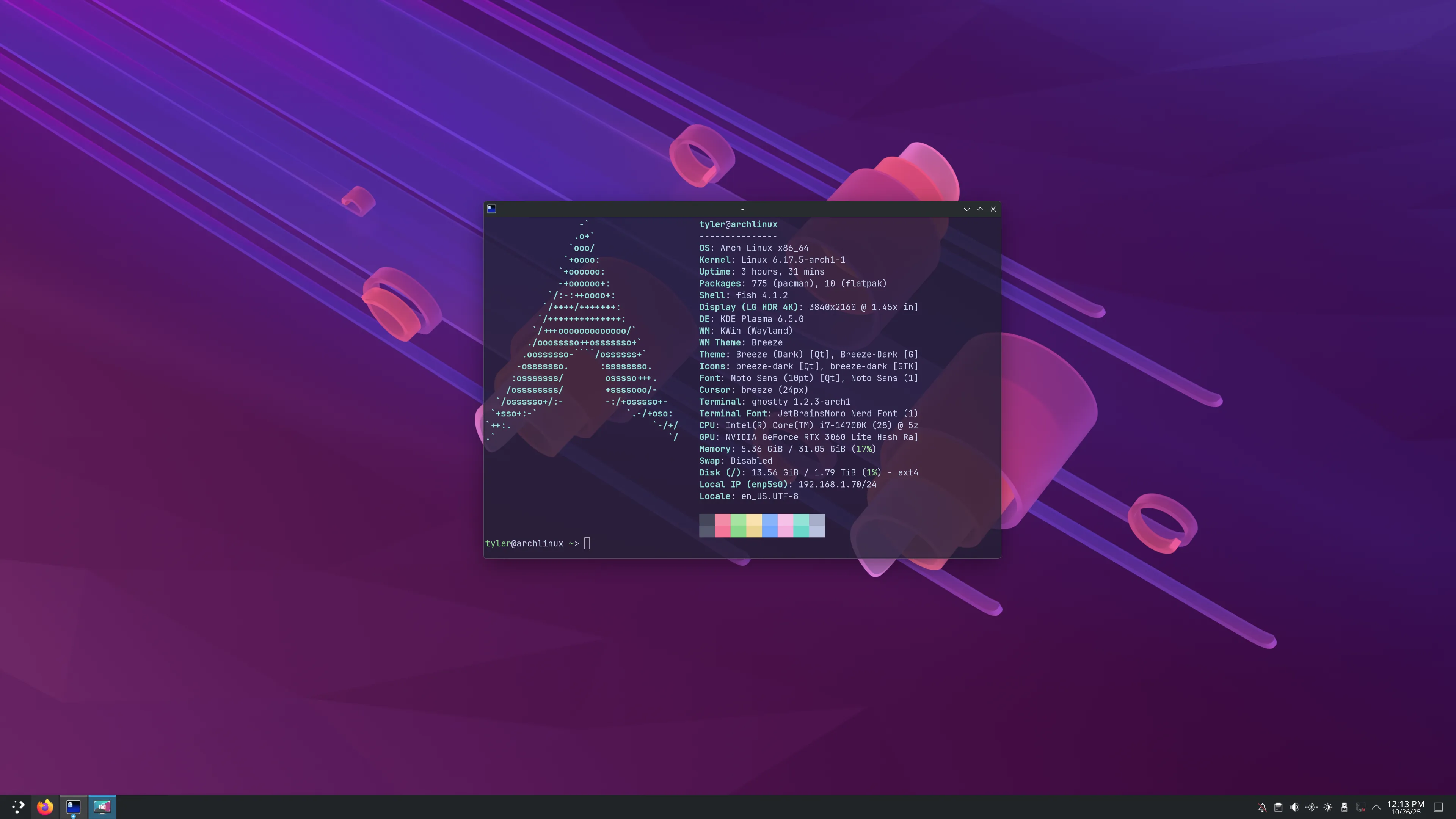
Now I get to bask in my OS superiority and post screenshots like this: